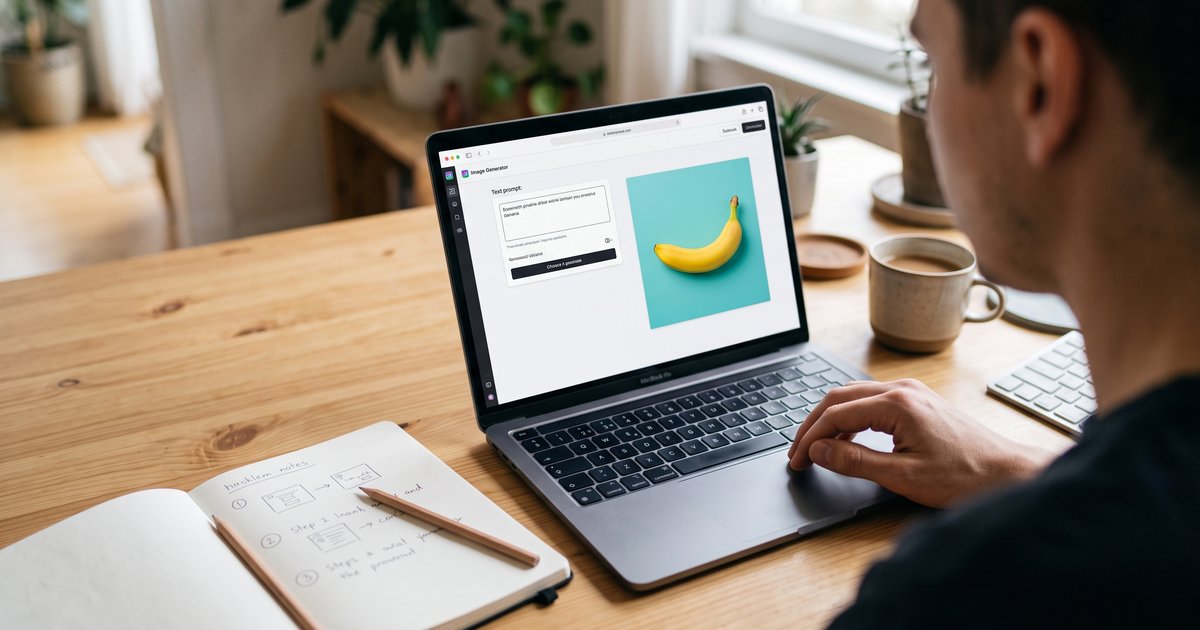
To use Nano Banana 2.1 the simplest way: open the Gemini app, sign in with a Google account, choose image creation, type what you want, and generate. To edit a photo, attach it and describe the single change you want. That route is free within limits Google has not published, and it needs no key and no setup.
Nano Banana 2.1 has been generally available since 2026-10-06 as gemini-nano-banana-2.1, and it runs in several places with different controls. This page walks through five of them in order of effort: the Gemini app, AI Mode in Google Search, Google AI Studio, this site, and the Gemini API. Then it covers the three things 2.1 is built for, which is where most people get stuck: editing only part of an image, holding a character steady across several images, and rendering a panoramic 8:1 frame in one pass.
Every prompt below has the image it produced next to it, rendered here with the real Nano Banana 2.1, one attempt each, unedited. Copy the text, change the nouns to your own subject, and keep the structural parts: the light and its direction, the camera position, the lens behavior, the quoted text and the keep-list.
Nano Banana 2.1 is the default model in the generator above and runs Google's gemini-nano-banana-2.1. nanobanana21.app is an independent site, not affiliated with, endorsed by or sponsored by Google. Accurate as of October 7, 2026.
How do you use Nano Banana 2.1?
There are five practical routes to Nano Banana 2.1, and they differ in one way that matters: how many of the model's parameters you are allowed to set. Chat surfaces choose for you; AI Studio, the API and third-party studios let you pick resolution, aspect ratio and reference images.
All five run the same model, so a prompt that works in one works in the others. What changes is the controls, the cost, and whether your images are kept somewhere you can find them again.
| Route | What you need | What you can set | Cost |
|---|---|---|---|
| Gemini app | A Google account | Prompt, attached photo | Free within unpublished limits |
| AI Mode in Google Search | The Google app | Prompt, attached photo | Free within unpublished limits |
| Google AI Studio | A Google account and a browser | Model id, 1K/2K/4K, every ratio, up to 14 references, thinking level | Depends on your account terms |
| This site | Google sign-in | Model, 1K/2K/4K, every ratio, up to 14 references | 20 credits per 1K image, 20 free credits to start |
| Gemini API | An API key and code | Everything the model exposes | $0.0336 at 1K, $0.0504 at 2K, $0.0756 at 4K |
How to use Nano Banana 2.1 in the Gemini app
The Gemini app is the shortest path to a Nano Banana 2.1 image, and the steps are the same on phone and web:
- Open the Gemini app and sign in with the Google account you want the work under.
- Choose image creation. Depending on your version this is a "Create image" option or a banana icon near the prompt box.
- Type what you want in plain language. Be specific about light, camera position and any text you want rendered, in capitals.
- Generate, then iterate in the same conversation. Multi-turn consistency improved in 2.1, so asking for a change in the next message beats starting over.
- To edit rather than generate, attach the photo and describe the single change you want plus what must stay the same.
What you do not get is the parameter set: resolution, thinking level and sometimes aspect ratio are chosen for you, and there is no published way to force 4K or an 8:1 frame from a chat box. For those, use AI Studio, the API or a studio like this one.
Two limits to expect. Your account has an image quota and Google has not published the number for 2.1, so people usually discover it partway through a session. And availability depends on your account, plan and country, so a missing option is a rollout answer rather than a setting you missed.
How to use Nano Banana 2.1 in AI Mode in Google Search
AI Mode in Google Search is the fastest route of all, and it lives in the Google app rather than in a browser tab:
- Open the Google app and look under the search box for the banana icon.
- Tap it to open image generation in AI Mode.
- Describe the image you want, or attach a photo and describe the change.
- Generate, then refine by sending another message rather than rewriting from scratch.
This is the most constrained surface: you get whatever controls AI Mode chooses to show, which generally means no explicit resolution, no thinking level and sometimes no aspect ratio. It is right for one casual image and wrong for anything you need in a specific shape or size.
If the banana icon is not under your search box, there is nothing to toggle and nothing to install: Google has published neither the country list nor the per-plan limits for 2.1, and rollouts are staged.
How to use Nano Banana 2.1 in Google AI Studio
Google AI Studio is the best place to learn what Nano Banana 2.1 can do, because it exposes the same parameters the API does without asking you to write code. In a browser:
- Sign in to Google AI Studio with a Google account.
- Select gemini-nano-banana-2.1 as the model.
- Set the image size: 1K, 2K or 4K. There is no 512 pixel tier on 2.1; Nano Banana 2 had one and 2.1 dropped it.
- Pick an aspect ratio. The list is 1:1, 3:2, 2:3, 3:4, 4:3, 4:5, 5:4, 9:16, 16:9 and 21:9, plus the panoramic 1:4, 4:1, 1:8 and 8:1, which are listed at 2K and 4K.
- Attach reference images if you are editing or holding a subject consistent: up to 14 per request, of which up to 10 can be objects and up to 4 can be characters.
- Choose a thinking level: minimal for simple high-volume work, medium (the default) for most prompts, high for prompts with many conditions.
- Write the prompt and run it, then change one parameter at a time so you can tell which change did what.
One caution before a long session: whether AI Studio usage costs you anything depends on Google's current terms for your account and project, and Google has not published a guaranteed free quota for this model. Read what AI Studio says about billing first.
How to use Nano Banana 2.1 on this site
On nanobanana21.app, Nano Banana 2.1 is the default model and the whole flow happens in a browser with no key:
- Sign in with Google. It is the only sign-in method, and generating requires it. New accounts get 20 free credits, valid 7 days, no card.
- Open the studio. Text to image is one tab, image to image is the other; the second is where you upload something to edit.
- Leave the model on Nano Banana 2.1, or switch it. The picker has eleven others, including Nano Banana Pro, Nano Banana 2, GPT Image 2.5, Seedream 5 Pro and FLUX Kontext Pro, all on the same balance.
- Pick the aspect ratio before you prompt, because recomposing afterwards is a new generation rather than a crop. On 2.1 you get 1:1 through 21:9 plus the panoramic 4:1, 8:1, 1:4 and 1:8.
- Pick the resolution: 1K and 2K both cost 20 credits on Nano Banana 2.1, and 4K costs 30. Draft at 1K anyway.
- Add reference images if you need them: up to 14 on 2.1, as PNG, JPEG or WebP, up to 24 MB for all of them together in one job.
- Write the prompt and generate. Up to 3 jobs can run at once, and a generation that fails or is refused is refunded automatically, exactly once.
- Find everything again in your library, which is private to your account.
Two honest notes. There is no brush or mask tool here: regional editing is done in words, by naming the area and listing what must not change, which is the technique the next section covers. And downloading the full-resolution file requires any purchase; free credits let you generate and view. 20 credits is one image at 1K, so the free bonus is a careful try rather than a free tier.
If you continue: monthly plans start at $9.90 for 1,000 credits (about 50 images at 1K), and packs that never expire start at $29.90 for 1,000 credits, with 50 percent off the first 1,000 or 3,000 pack. See the pricing page, and best Nano Banana 2.1 apps for how this site compares to Google's own surfaces.
How to use the Nano Banana 2.1 API
If you write code, use the Gemini API directly: the model id is gemini-nano-banana-2.1, the call is one POST, and the price is $0.0336 per image at 1K, $0.0504 at 2K and $0.0756 at 4K, with the Batch API at 50 percent off. Set responseModalities to include IMAGE, pass imageSize as 1K, 2K or 4K, pass aspectRatio as a string like 16:9, and read the image back from the inlineData part of the response. The full request shape, the Python version, the error cases and the volume arithmetic are in the Nano Banana 2.1 API guide, which also covers the 2026-10-29 shutdown of Nano Banana 2.
Your first five prompts
Five prompts covering what people most often want from Nano Banana 2.1: a product shot, a poster with real type, a real place, an infographic with exact labels, and a collectible figurine. Each was run here on 2.1, one attempt, no retouching.
All five follow the same skeleton: subject, the surface it sits on, light and its direction, camera position, lens behavior, then any text in capitals as its own clause. If a result is wrong, change one clause rather than adding adjectives. More prompts are in the prompts guide.
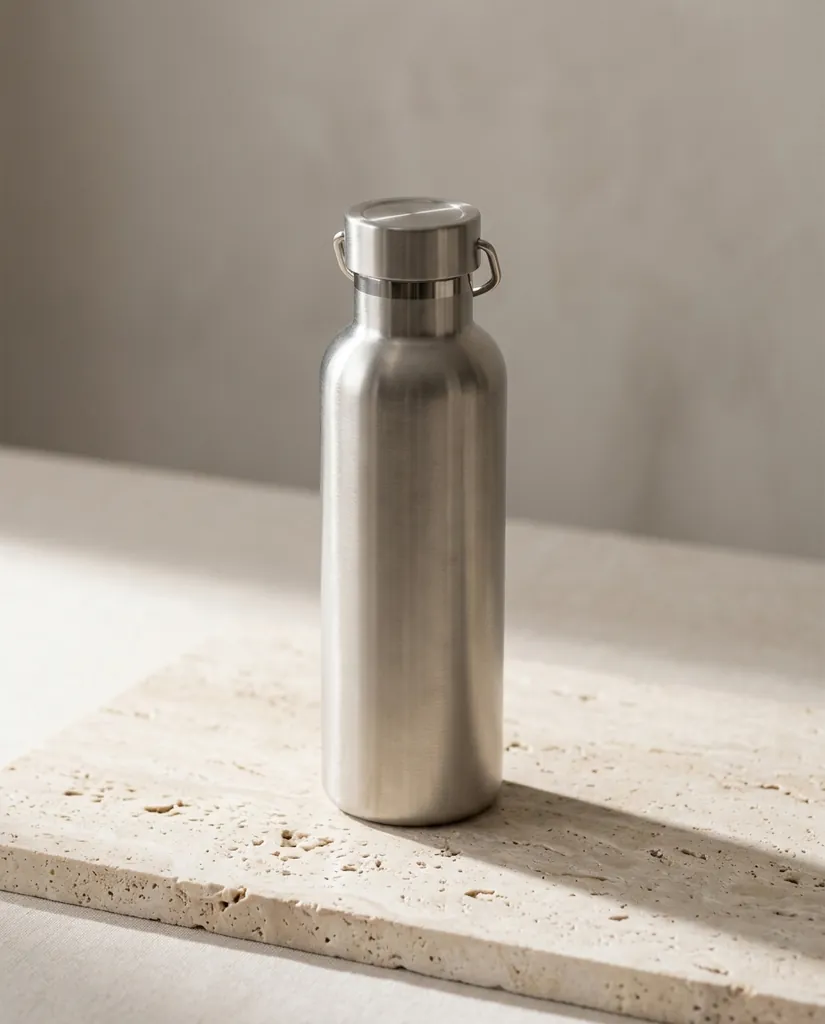
A brushed stainless water bottle standing on a pale travertine slab, single soft light source from the upper left, long soft shadow to the right, muted neutral palette, shallow depth of field, shot at eye level, clean commercial catalog look.
Nano Banana 2.1 · 4:5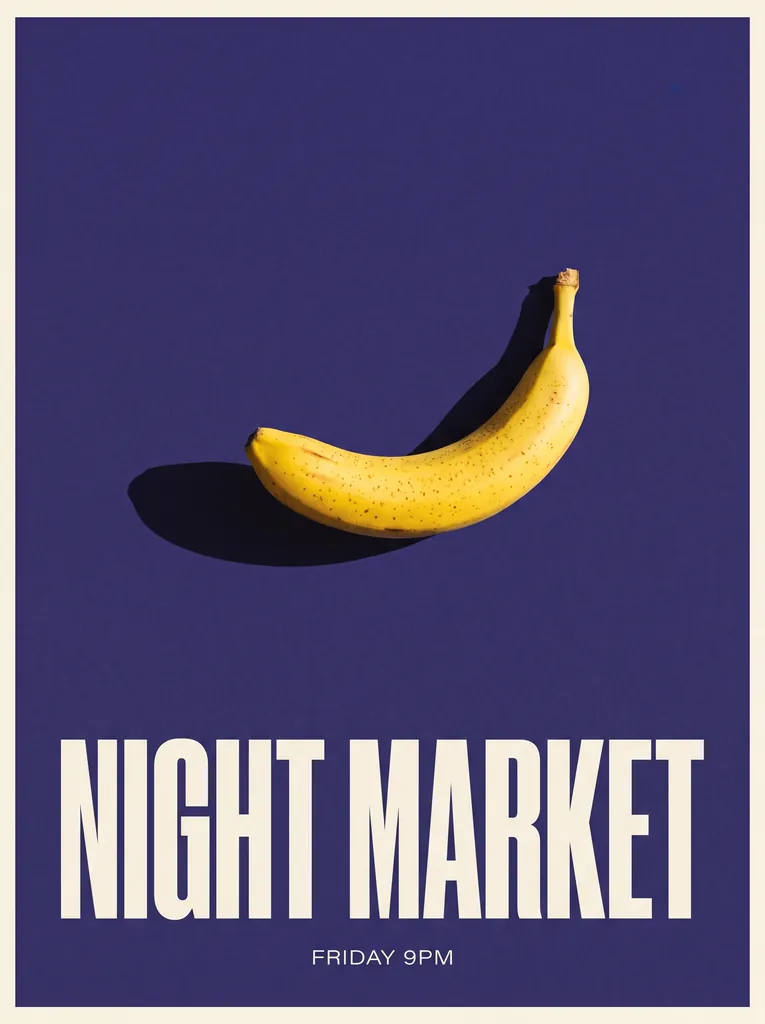
A minimalist concert poster on a deep indigo background, one ripe banana lit from the right casting a long hard shadow, the words NIGHT MARKET in heavy condensed sans across the lower third, small centered line below reading FRIDAY 9PM, fine paper grain, flat even lighting, straight-on view.
Nano Banana 2.1 · 3:4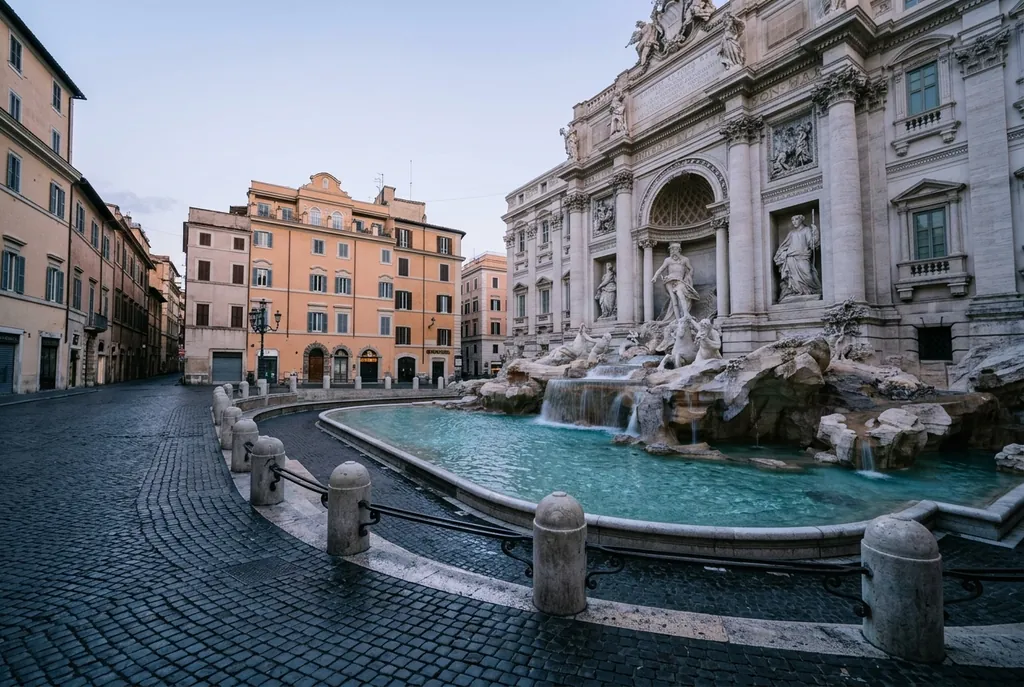
A travel editorial photograph of the Trevi Fountain in Rome at 6am with no crowds, soft cool pre-sunrise light, wet stone, wide-angle view from the lower left corner of the piazza, accurate architecture and sculpture placement, natural color, no text.
Nano Banana 2.1 · 3:2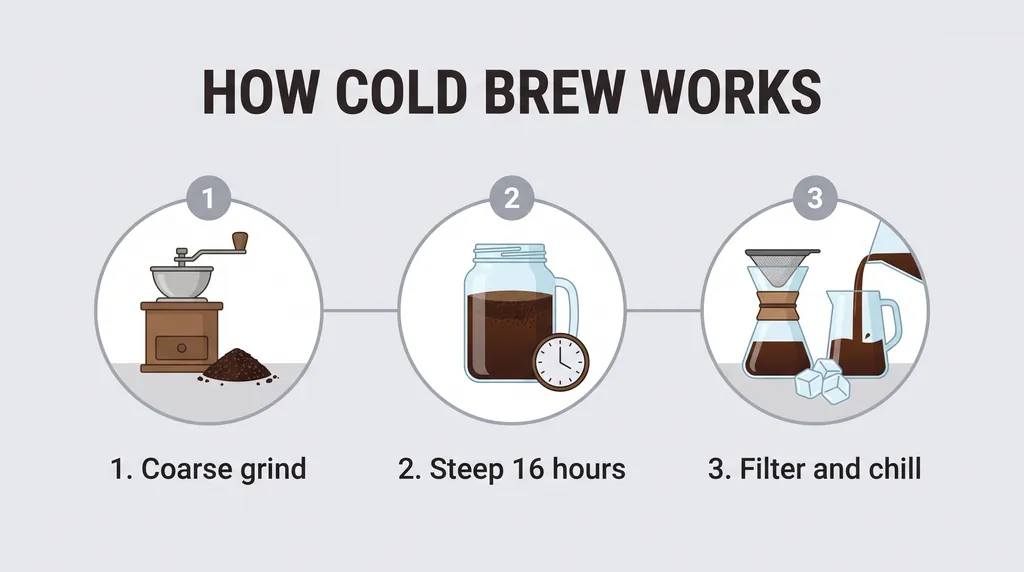
A clean three-step infographic on a pale gray background, three numbered circles connected by a thin horizontal line, with the heading HOW COLD BREW WORKS across the top, and the steps labeled exactly "1. Coarse grind", "2. Steep 16 hours", "3. Filter and chill" beneath each circle, flat vector style, generous margins, no other text.
Nano Banana 2.1 · 16:9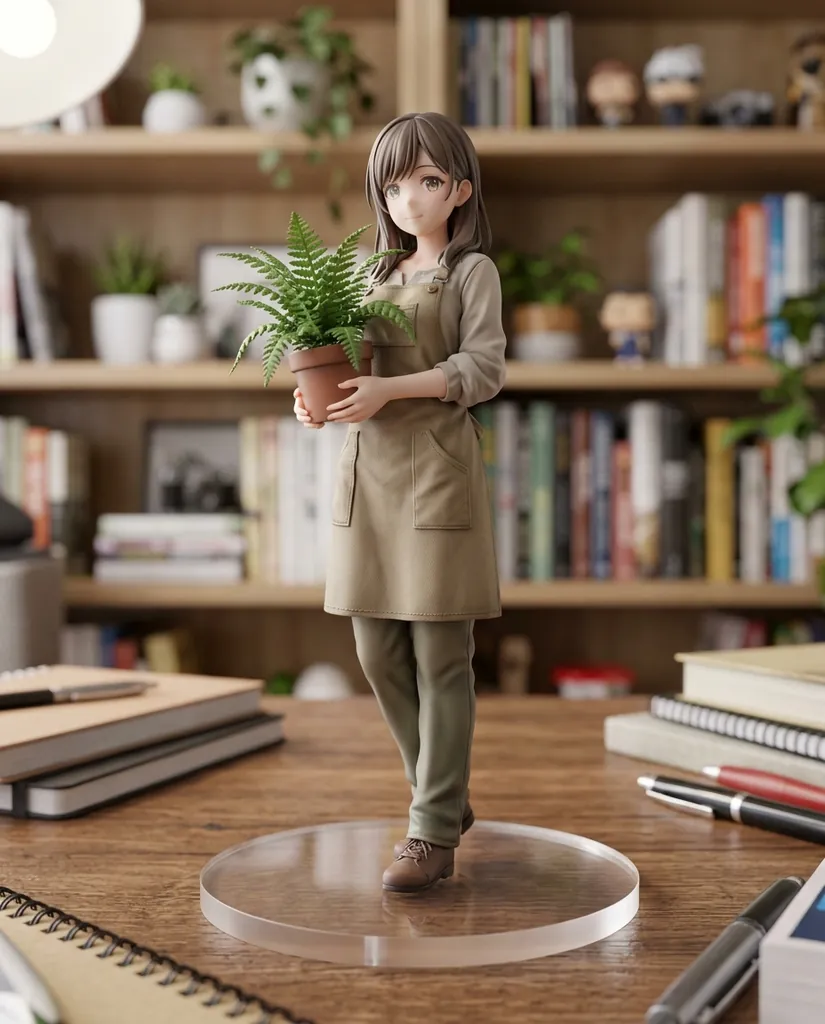
A 1/7 scale collectible PVC figurine of a young botanist in a canvas apron holding a potted fern, standing on a round clear acrylic base on a wooden desk, visible paint detail and seam lines, soft diffuse studio light from above left, shallow depth of field with a blurred bookshelf behind.
Nano Banana 2.1 · 4:5
How to edit only part of an image
To change one region of an image with Nano Banana 2.1, name the area, name the change, then name what must not move. Mask-based regional editing is one of the three things Google says 2.1 improved most, and words alone get you most of the benefit: attach the photo, write those three clauses, generate.
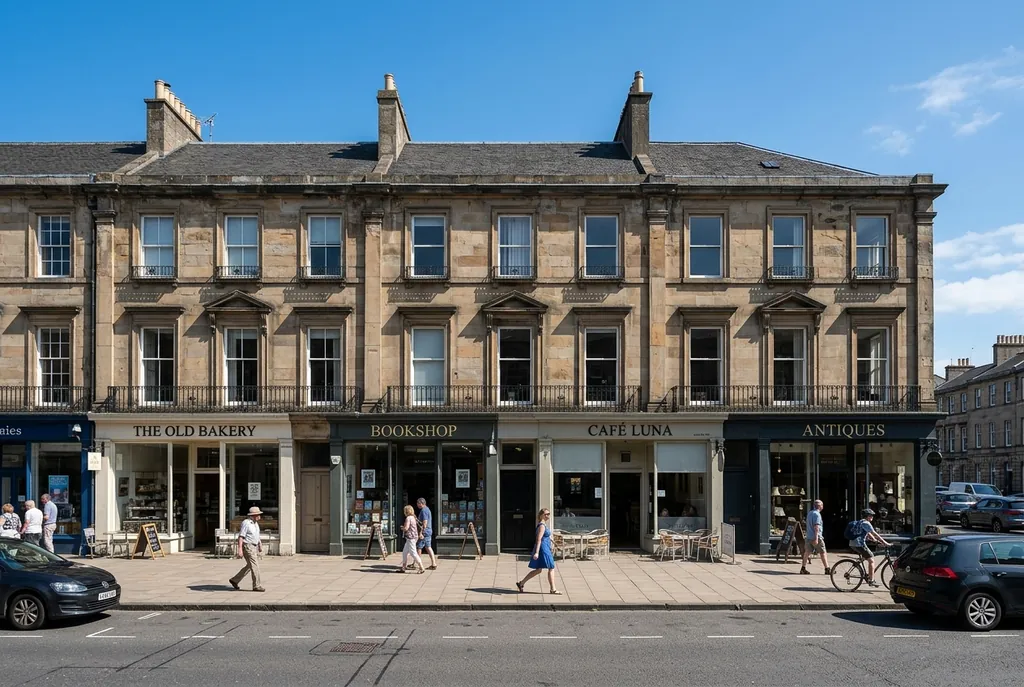
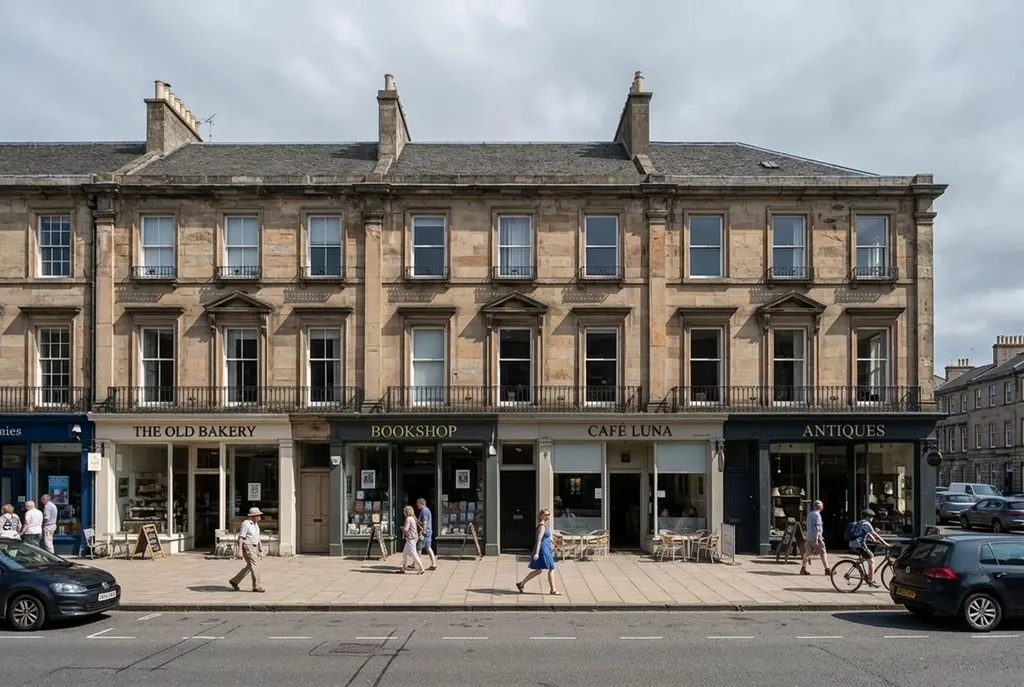
An edit that spills into the rest of the frame is a region problem, not a style problem: the area you described was too vague. Make it smaller and say what borders it ("above the roofline", "on the front panel only", "in the lower third"), then run it again. And do not bundle changes: two worked examples, source photo first.
Change only the sky above the roofline to an overcast gray with soft diffused light. Keep the building, the street, the people and their shadows exactly as they are, and match the new light temperature on the rooftop edges only.
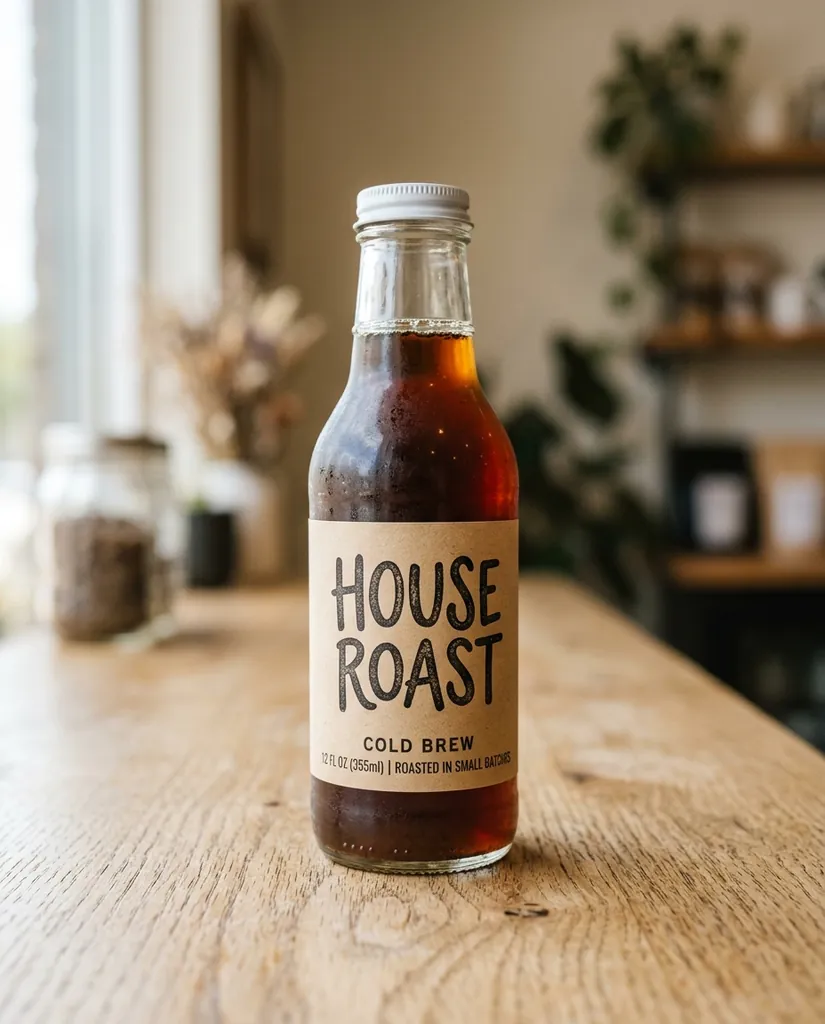
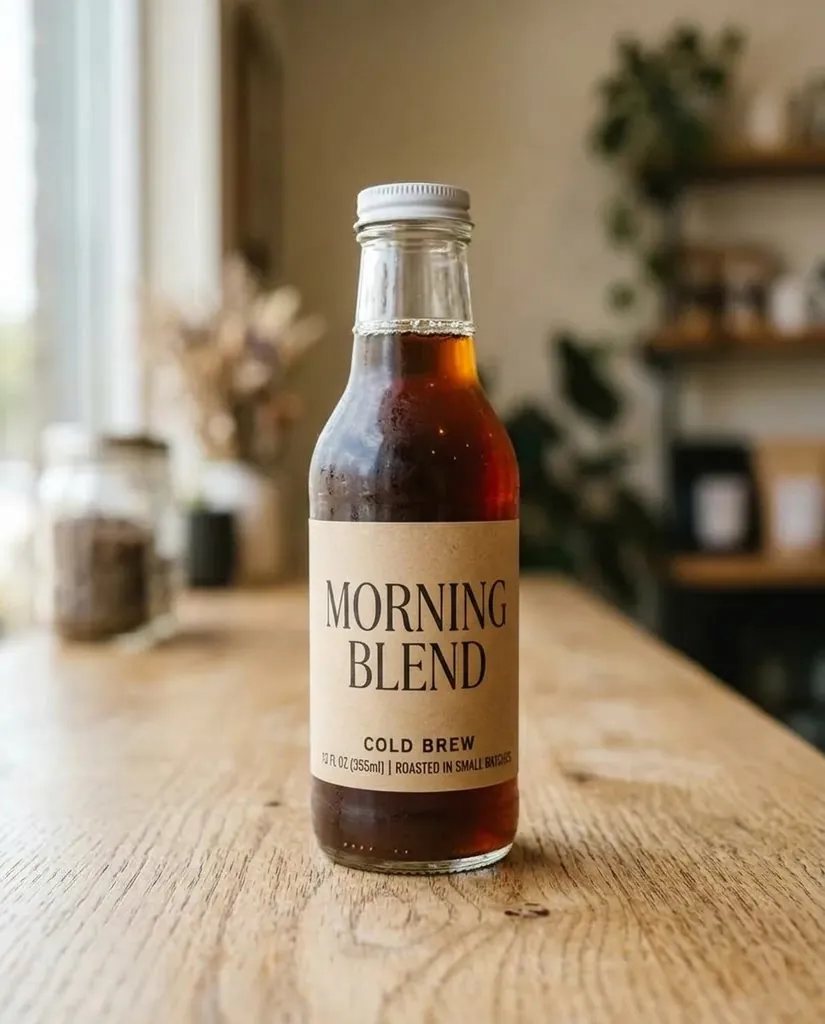
Nano Banana 2.1 · 3:2Edit only the label on the front of the bottle: replace the text with MORNING BLEND in a clean uppercase serif, keep the label shape, the paper texture, the bottle, the lighting and the background unchanged.
Nano Banana 2.1 · 4:5
How to keep a character consistent across images
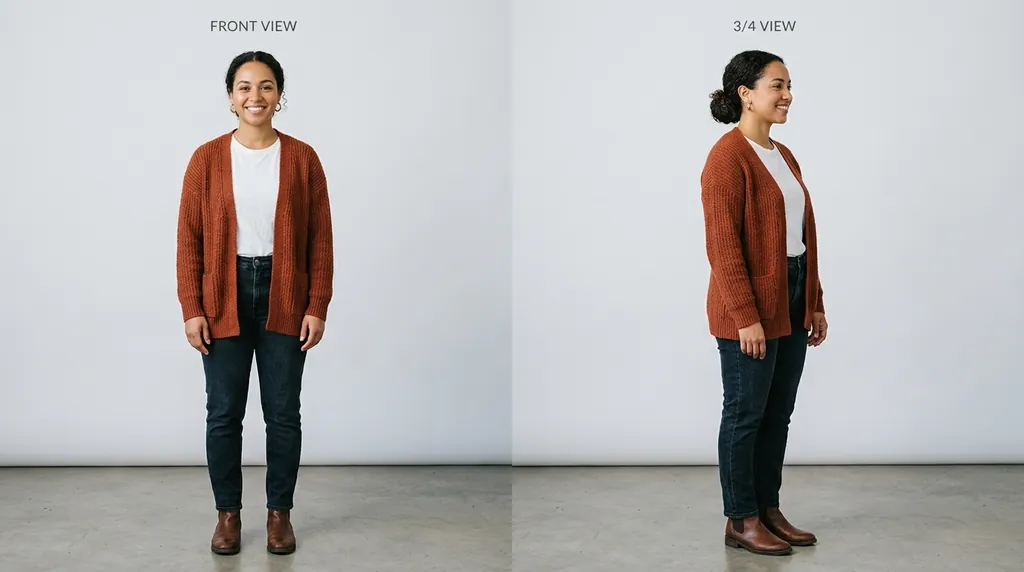
To keep the same person or product across several Nano Banana 2.1 images, attach reference images and say explicitly what to hold constant. 2.1 accepts up to 14 references in one request, up to 10 objects and up to 4 characters, and subject consistency is the second of the three gains Google names for it.
The recipe: give it two or three angles of the same face or product, describe only the new scene, then end with a hold-constant clause ("keep her face, hair length and the shape of her glasses consistent with the references"). When consistency slips, add a reference rather than more adjectives, and in a chat surface continue the same conversation instead of opening a new one.
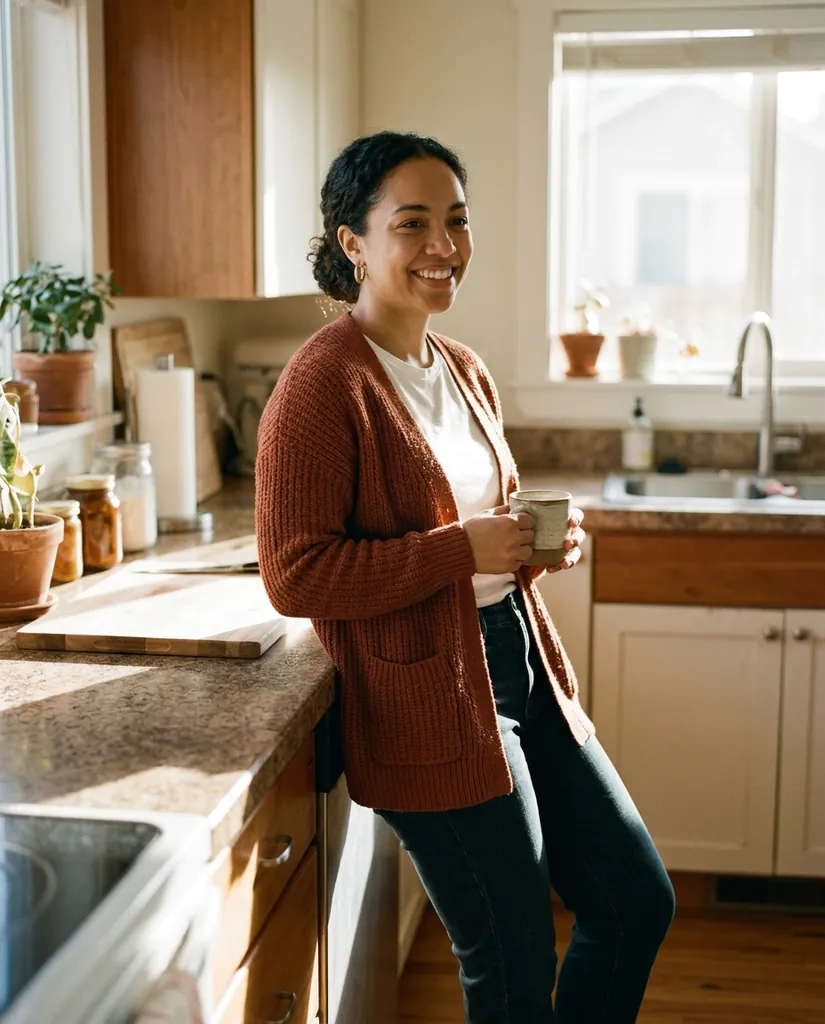
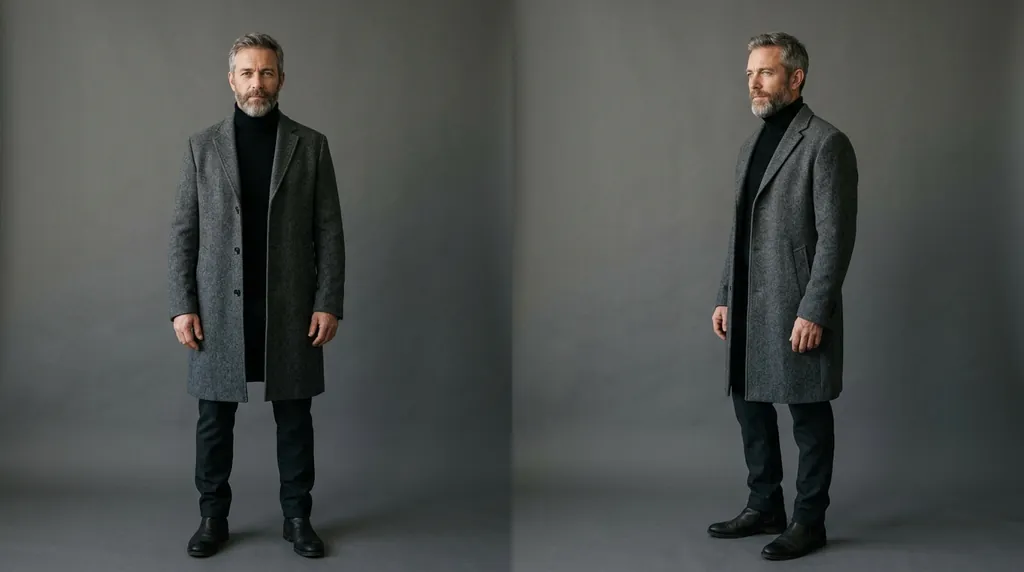
Using the attached reference images of the same woman, place her in a sunlit kitchen leaning against the counter with a mug, soft window light from the right, shallow depth of field, shot at eye level. Keep her face, hair length and the shape of her glasses consistent with the references.
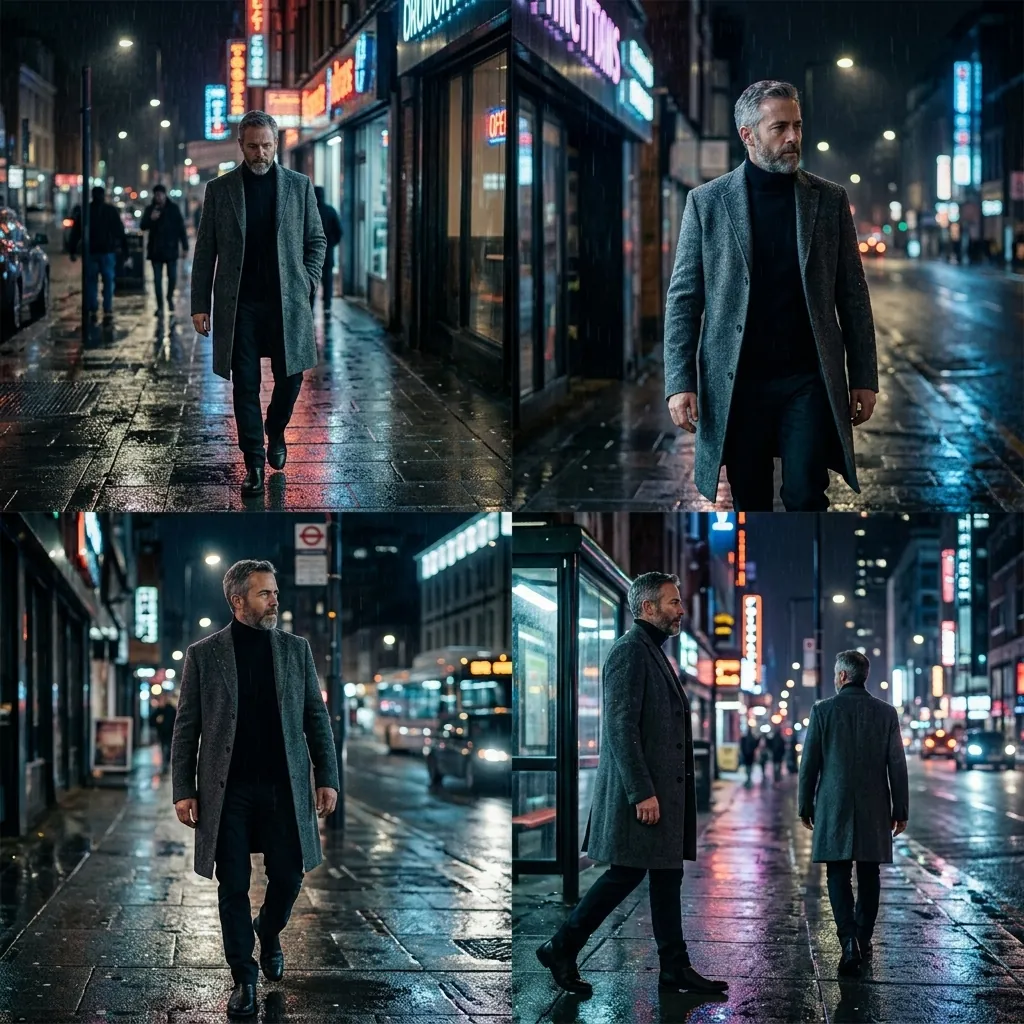
Nano Banana 2.1 · 4:5Using the attached character references, produce a four-panel sequence of the same man in a gray overcoat walking through a rainy city street at night, neon reflections on wet asphalt, consistent face and coat across all four panels, cinematic wide framing.
Nano Banana 2.1 · 1:1
How to get a panoramic 8:1 image
To get an 8:1 panorama from Nano Banana 2.1, set the aspect ratio to 8:1 before you prompt and the resolution to 2K or 4K: Google lists 1:4, 4:1, 1:8 and 8:1 at those two sizes, and the model renders the whole frame in one pass rather than tiling. On this site, pick 8:1 in the ratio picker and 2K in the resolution picker; in AI Studio or the API, pass aspectRatio as the string 8:1 and imageSize as 2K or 4K.
Then compose for the shape. The usual way a panorama fails is a prompt that implies one focal point, which gives you an interesting middle and two dull ends. Say that detail should be even across the full width, and if the image is a website header, say which part to leave empty for text.
If a panoramic ratio is rejected, the cause is usually the surface, not the prompt: chat surfaces often do not expose extreme ratios, and the ratio is listed at 2K and 4K rather than 1K.

An 8:1 ultrawide website header: an empty desert highway running left to right across the whole frame at sunrise, low warm sun from the right, long shadows across the asphalt, a single distant truck near the left edge, the middle two thirds deliberately empty for text, crisp horizon, no vignette.
Nano Banana 2.1 · 8:1
A 1:8 tall vertical banner for a stairwell poster: a single sunflower stem growing from the bottom edge to the top of the frame against a flat cream background, soft even frontal light, consistent stem thickness, generous empty space on both sides, no cropping of the bloom at the top.
Nano Banana 2.1 · 1:8
Common mistakes when using Nano Banana 2.1
Eight mistakes account for most bad results and most wasted money:
- Keyword soup. "8k, ultra detailed, masterpiece, award winning" adds no information and crowds out the clauses that do.
- Describing text instead of quoting it. "A sign with the shop name" gives you invented letters. Write the words in capitals as their own clause.
- Editing without naming the region. 2.1 is built to change a selected area, so an edit prompt that does not say which area throws away its biggest advantage.
- Omitting the keep-list. An edit with no "keep the rest exactly as it is" invites the model to redraw the whole frame.
- Bundling several changes into one request. One change per generation, so you can tell what went wrong.
- Drafting at 4K. Find the composition at 1K, then spend once on the final.
- Choosing the aspect ratio last. Recomposing is a new generation, not a crop, so pick the shape first.
- Expecting an unwatermarked file. Every output carries an invisible SynthID watermark, free or paid, and no surface has a setting that removes it.
One more, specific to 2.1: if a complex prompt keeps getting partly ignored, the thinking level is the dial, not the wording. Medium is the default, high is for prompts with many simultaneous conditions. Only some surfaces expose it, which is another reason to test in AI Studio before deciding the model cannot do something.
FAQ
How do I use Nano Banana 2.1?
The simplest route is the Gemini app: sign in with a Google account, choose image creation, type your prompt, and generate. To edit a photo, attach it and describe the single change plus what must stay the same. For control over resolution, aspect ratio and reference images, use Google AI Studio, the Gemini API or a browser studio like this one.
Is Nano Banana 2.1 free to use?
In the Gemini app and AI Mode in Google Search, yes, within limits Google has not published for 2.1. The Gemini API is paid, at $0.0336 per image at 1K. New accounts on this site get 20 free credits valid 7 days, which is one image at 1K.
How do I edit only part of an image with Nano Banana 2.1?
Attach the photo and write three clauses: the region, the change, and what must not move, for example "change only the sky above the roofline to overcast gray, keep the building, the street, the people and their shadows exactly as they are". If the edit spills, make the region smaller and more specific.
How many reference images can I attach?
Up to 14 per request on Nano Banana 2.1, of which up to 10 can be objects and up to 4 can be characters. On this site they can be PNG, JPEG or WebP, up to 24 MB for all of them together in one job.
How do I get an 8:1 panoramic image?
Set the aspect ratio to 8:1 and the resolution to 2K or 4K before prompting: Google lists 1:4, 4:1, 1:8 and 8:1 at those sizes, and 2.1 renders the full frame in one pass. Chat surfaces often do not expose extreme ratios, so use AI Studio, the API or a studio that does.
How do I keep the same face across several images?
Attach two or three angles of that face as references, describe only the new scene, and end with a clause saying what to hold constant. When consistency slips, add another reference angle rather than more adjectives, and in a chat surface continue the same conversation instead of starting a new one.
Can I download the images I make on this site?
Downloading full-resolution files requires any purchase, a plan or a credit pack. With free credits you can generate and view images in a library private to your account, and failed or refused generations are refunded automatically.